![dark-1.png]](https://support.senturo.com/hs-fs/hubfs/dark-1.png?height=40&name=dark-1.png)
Overview
Every Security Policy Automation includes a schedule — the During block in the builder. The schedule controls when the automation is allowed to run. Outside its scheduled window, the automation stays dormant even if its trigger condition is met.
This gives you precise control over enforcement. You can lock down devices only during school hours, run recovery automations around the clock, or restrict an automation to a specific date range. This article explains the two schedule types, the quick presets, per-day scheduling, date restrictions, and how timezones are handled across your fleet.
To build an automation end to end, see How to Create a Security Policy Automation. For a conceptual overview, see Understanding Security Policy Automations.
Opening the Schedule
The schedule is the fourth block of the automation builder.
- In the During section, click on Set active schedule.
- The Active schedule dialog opens. Choose a schedule type — Always On or Custom Schedule — to continue.
A schedule type is required before an automation can be activated. Until you select one, the Schedule pre-save check remains incomplete.
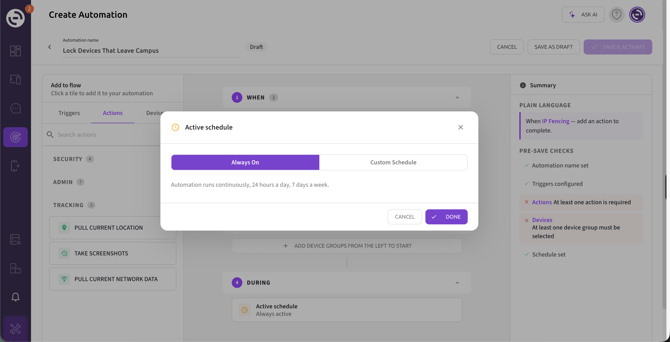
Always On
Select Always On for an automation that should run continuously — 24 hours a day, 7 days a week. This is the right choice for automations where the trigger condition matters at any time, such as loss or theft response.
Once selected, no further schedule configuration is needed. Click on Done to save.
Custom Schedule
Select Custom Schedule to run the automation only on the days and during the time windows you define. This is ideal for policies tied to a working day, shift pattern, or school day.
Quick presets
Presets fill in a common schedule for you, which you can then adjust:
- School Hours — a typical weekday school-day schedule.
- Business Hours — a typical weekday business schedule.
- Weekends Only — Saturday and Sunday.
Click on a preset to apply it, then fine-tune the days and times as needed.
Active days
Under Active days, select the days the automation should run by toggling each day (Mon through Sun). Use Select all to enable every day, or Clear to start from none.
Time windows
Under Time windows, set the start and end time for the selected days:
- Enter a start time and an end time (for example,
08:00to15:30). - To run the automation during more than one window in a day, click on + Add time window and define the additional window.
As you configure the schedule, a summary line shows the result — for example, "Mon–Fri, 08:00–15:30 (5 days, 7.5h/day, 37.5h/week)."
Setting different hours for each day
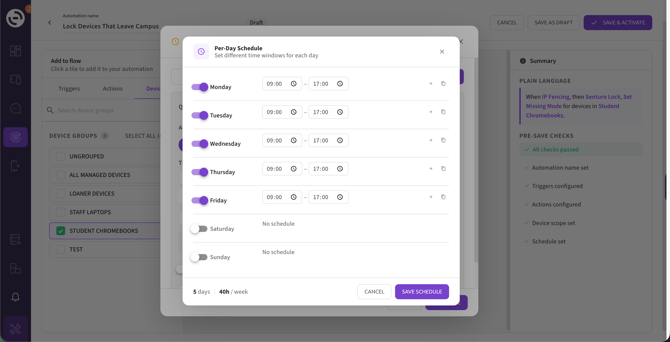
If your days don't share the same hours, click on Customize per day to open the Per-Day Schedule dialog. There you can:
- Toggle each day on or off individually.
- Set a distinct start and end time for each active day.
- Add more than one time window to a day with the + control.
- Copy a day's hours to other days with the copy control.
Days left off show No schedule and the automation won't run on them. Click on Save Schedule to apply.
Restricting to specific dates
To limit the automation to a date range — for example, a single semester or an exam period — turn on Restrict to specific dates and set the range. When off, the schedule repeats every week indefinitely.
How Timezones Work
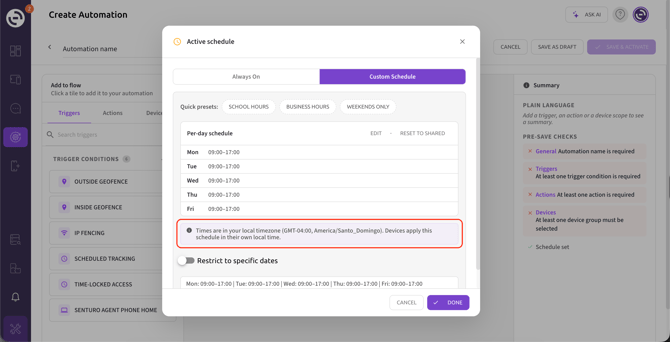
This is the most important thing to understand about scheduling. The times you enter are in your local timezone, shown in the dialog (for example, GMT‑5, America/New_York). However, each device applies the schedule in its own local time.
In practice, that means a School Hours schedule of 08:00–15:30 runs from 08:00 to 15:30 local time on each device, whether the device is in New York, Chicago, or Denver. You don't need to create separate automations per timezone — one schedule stays correct across your entire fleet automatically.
Troubleshooting
I can't activate my automation — the Schedule check is incomplete. A schedule type must be selected. Open the Active schedule dialog and choose Always On or Custom Schedule, then click on Done.
My automation isn't running when I expect it to. Confirm the current day is enabled under Active days and that the current local time falls within a defined Time window. Remember that the device applies the schedule in its own local time, not yours.
My automation runs at the wrong time for some devices. This is usually a timezone expectation. Schedules apply in each device's local time, so a window set for 08:00–15:30 runs during those hours wherever the device is. If you need a single fleet-wide moment regardless of location, note that the schedule is not designed for that.
A day I configured shows "No schedule." In the Per-Day Schedule dialog, that day's toggle is off. Turn it on and set a time window for it.
Conclusion
The schedule is what makes an automation's enforcement match your calendar. Choose Always On for continuous protection, or a Custom Schedule to align enforcement with school or business hours — right down to per-day windows and specific date ranges. And because devices apply schedules in their own local time, a single schedule keeps behaving correctly across every timezone in your fleet.
FAQs
Q: What's the difference between Always On and Custom Schedule? A: Always On runs the automation continuously, 24/7. Custom Schedule runs it only on the days and during the time windows you define.
Q: Can an automation run during more than one time window in a day? A: Yes. Under Time windows, click on + Add time window to define additional windows, or use Customize per day to set different windows for each day.
Q: Do the schedule times use my timezone or the device's? A: You enter the schedule in your own local timezone, but each device applies it in its own local time. A schedule such as "School Hours" therefore stays correct for devices in different timezones automatically.
Q: Can I limit an automation to a specific date range? A: Yes. In a Custom Schedule, turn on Restrict to specific dates and set the range. Without it, the weekly schedule repeats indefinitely.
Q: What happens to the trigger outside the scheduled window? A: The automation is dormant outside its schedule. Even if the trigger condition is met, the actions won't run until the automation is within an active scheduled window.