![dark-1.png]](https://support.senturo.com/hs-fs/hubfs/dark-1.png?height=40&name=dark-1.png)
Overview
The Actions section of the Senturo Device Console contains the controls that change a device's state: setting its status, locking and unlocking it, and wiping it.
Device status governs the rest. Lock, wipe, and the recovery report are only available once a device is set to Missing, so escalating the status is always the first step when a device is reported lost or stolen.
This article covers all four controls in the order you will use them.
Before You Begin
You need an active session in the Senturo Device Console and the relevant permissions:
- Change Status to set the device status
- Lock Device and Unlock Device for the lock controls
- Wipe Device to wipe
Platform support varies by action:
| Action | Supported platforms |
|---|---|
| Change Status | All platforms |
| Lock Device / Unlock Device | ChromeOS, macOS, Windows |
| Wipe Device | macOS, Windows |
Setting the Device Status
A device is either Monitored or Missing.
- Monitored is normal tracking. Recovery actions are disabled.
- Missing enables heightened tracking and unlocks the recovery actions: lock, wipe, and the recovery report.
To change the status:
- Navigate to Actions › Status.
- Click on the status you want to apply. Selecting Missing displays a notice confirming that administrators will be notified and recovery actions will be enabled.
- Click on Update status. A confirmation appears and the status indicator in the console header updates.
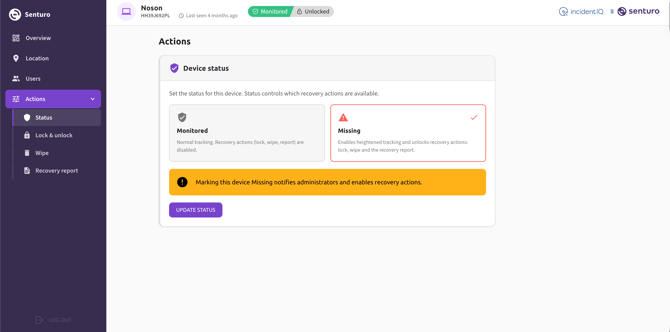
Note: Marking a device Missing notifies administrators. It is a deliberate escalation, not a formality — it is the point at which a device becomes a recovery case.
When the device is recovered, set the status back to Monitored using the same steps.
Locking a Device
A Senturo lock prevents anyone from using the device. The person holding it cannot access it until it is unlocked from Senturo, or until the password you set is entered on the device itself.
The device must be set to Missing before it can be locked. Attempting to lock a Monitored device will not proceed.
To lock a device:
- Navigate to Actions › Lock & unlock. The page confirms the device's current lock state.
- Enter a Contact Number. This is displayed on the lock screen so whoever has the device can reach you.
- Enter a Password. This password releases the lock when entered on the device. Click on the eye icon to check what you have typed.
- Add images (optional). Upload a First Displayed Image and a Second Displayed Image by dragging files onto the upload areas or browsing for them. These appear on the lock screen — a district logo, for example. Click on the remove icon on an image to replace it.
- Enter a Message (optional). Up to 300 characters, displayed on the lock screen. Use it to explain how the device should be returned.
- Click on Lock device.
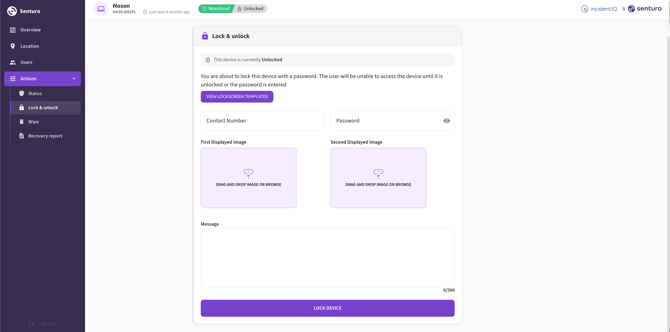
Note: The contact number and message are what turn a locked device into a returned device. Someone who finds a locked laptop with a clear message and a phone number has an obvious next step; someone facing a blank lock screen does not.
Unlocking a Device
When a device is recovered, unlock it from the same page.
- Navigate to Actions › Lock & unlock.
- Click on Unlock device.
The device unlocks the next time it connects to the network. A device that is offline stays locked until it reconnects.
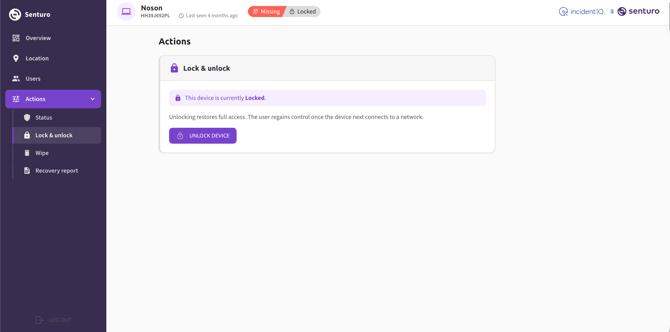
Note: Unlocking releases the lock but does not change the device status. Set the device back to Monitored separately once it is genuinely recovered.
Wiping a Device
A Senturo wipe permanently erases the data on the device. It cannot be undone, and it should only be used when the device is unlikely to be recovered or is being decommissioned.
The Senturo agent is preserved during a wipe, so the device remains trackable afterwards.
The device must be set to Missing before it can be wiped.
To wipe a device:
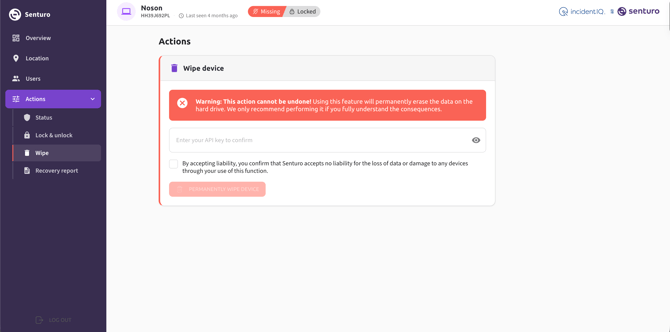
- Navigate to Actions › Wipe.
- Read the warning. The action is irreversible and erases the data on the drive.
- Enter your API key to confirm. This is the same key you authenticated with.
- Check the liability confirmation. This confirms that Senturo accepts no liability for data loss or device damage resulting from the wipe.
- Click on Permanently wipe device. The button becomes available only once both the API key and the liability confirmation are complete.
Troubleshooting
Lock, Wipe, or Recovery report is unavailable. The device status is Monitored. Navigate to Actions › Status, set it to Missing, then return to the action.
Locking a device returns a notice about marking it Missing. The status has not been changed yet. Set it to Missing and try again — the lock details you entered will need re-entering.
The Permanently wipe device button stays unavailable. Both the API key and the liability confirmation are required. Confirm the key is entered correctly using the eye icon, and that the checkbox is ticked.
A device was locked or unlocked but nothing appears to have happened. Commands apply when the device next connects to the network. Check Last seen in the console header — a device that is offline or powered off will not receive the command until it reconnects.
Wipe is not available for a device. Wipe is supported on macOS and Windows only.
Conclusion
The status control is the gate for everything else in the Actions section. Setting a device to Missing enables heightened tracking, notifies administrators, and makes the recovery actions available — which is why it is always the first step rather than an extra one.
From there, a lock with a clear contact number and message gives a device the best chance of being returned, while a wipe protects data on a device you do not expect to see again.
FAQs
Q: Why can I not lock a device that is set to Monitored? A: Lock, wipe, and the recovery report all require the device to be set to Missing. Attempting to lock a Monitored device returns a notice asking you to change the status first.
Q: What happens if the device is offline when I lock or unlock it? A: The command applies the next time the device connects to the network.
Q: Is the device still trackable after a wipe? A: Yes. The Senturo agent is preserved during a wipe, so location tracking continues.
Q: Why does Wipe ask for my API key when I am already signed in? A: It is a deliberate confirmation step for an irreversible action. Both the API key and the liability confirmation are required before the wipe can proceed.