![dark-1.png]](https://support.senturo.com/hs-fs/hubfs/dark-1.png?height=40&name=dark-1.png)
Overview
The Incident IQ integration brings Senturo device management into Incident IQ. Once it is configured, each asset page displays a set of Senturo action links that open the Senturo Device Console, where authorized users can review a device, check its location and login history, change its status, and run recovery actions.
Setting up the integration takes four stages: connect the two platforms, add the users who need access and generate their API keys, create the required custom fields in Incident IQ, and test the configuration. This article walks through each stage in order.
Complete the stages in sequence. The custom fields are what render the action links on asset pages, so the integration will look inactive until that stage is finished and tested.
Before You Begin
You will need:
- Administrator access in Senturo, to connect the integration and manage users.
- Administrator access in Incident IQ, to create an API token and add custom fields.
- Your Incident IQ instance URL, in the format
https://yourdistrict.incidentiq.com.
Step 1: Generate an API Token in Incident IQ
- Enter your credentials in Incident IQ.
- Navigate to Admin > Developer Tools > API Tokens.
- Search for IIQ Admin.
- Click on Create API Token.
- Copy the generated API token. You will paste this into Senturo in the next step.
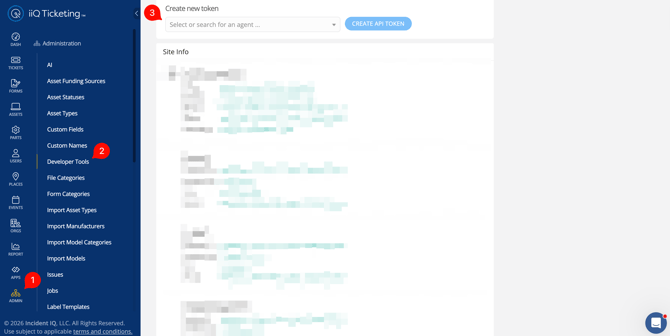
Note: Incident IQ displays an API token only once. Copy and store it securely before you navigate away, or you will need to create a new one.
Step 2: Connect Incident IQ in Senturo
- Enter your credentials in Senturo.
- Navigate to Integrations.
- Locate Incident IQ and click on Connect.
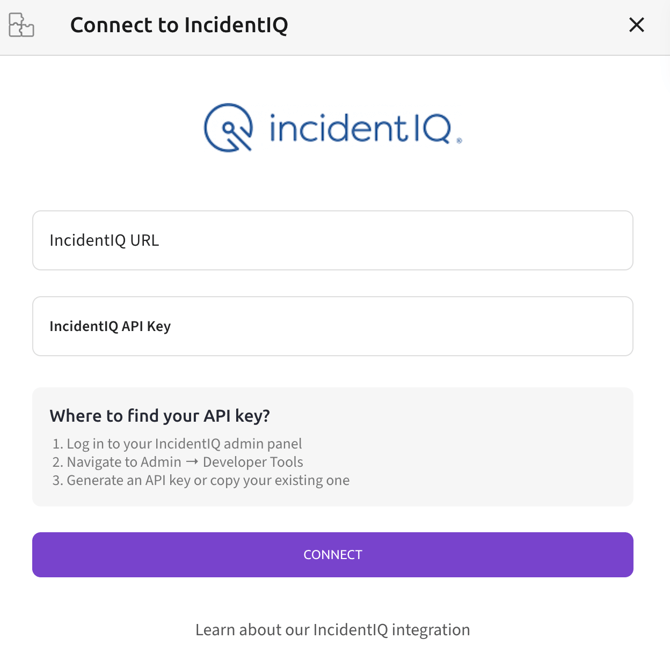
- Enter your Incident IQ URL, for example
https://yourdistrict.incidentiq.com. - Paste the API token you generated in Incident IQ.
- Click on Connect.
Once the connection succeeds, opening the Incident IQ tile again displays the Connect to IncidentIQ panel with three options: Manage Users, Test Integration, and Sign Out. You will use Manage Users next.
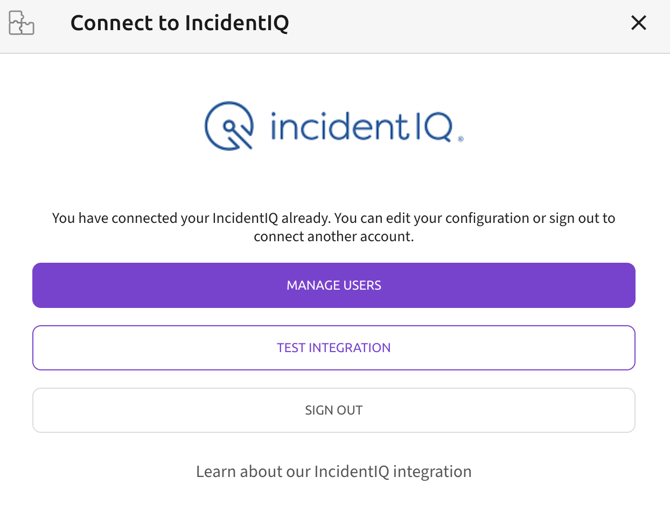
Note: Sign Out disconnects the current Incident IQ account so a different one can be connected. It is not the same as logging out of Senturo.
Step 3: Add Users and Generate API Keys
Every person who needs to use Senturo actions in Incident IQ requires their own API key. Keys are issued per user and cannot be shared.
- Navigate to Integrations.
- Locate Incident IQ and click on Manage Users. The User Management panel opens, listing everyone who currently has access to Senturo features in Incident IQ.
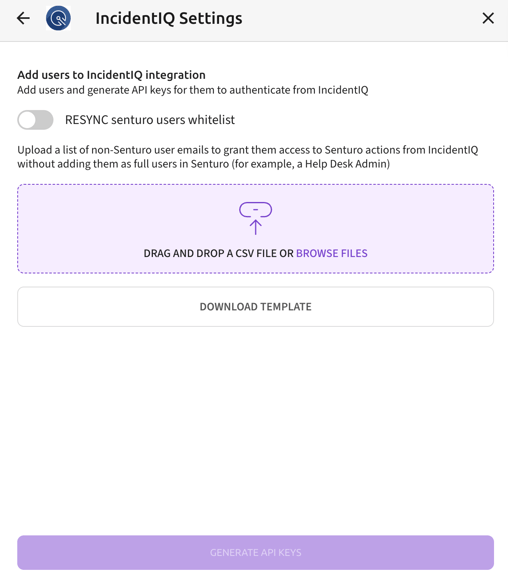
- Click on the add user icon beside the search field. The Add users to IncidentIQ integration panel opens.
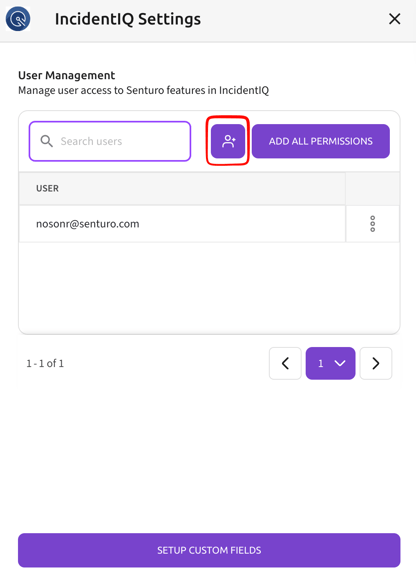
- Add your users using either method:
- Existing Senturo users — enable the RESYNC senturo users whitelist toggle to bring them into the integration.
- Users who are not in Senturo — click on Download Template, add their email addresses to the CSV, then upload it using Drag and drop a CSV file or Browse files. This grants an Incident IQ user access to Senturo actions without creating a full Senturo account for them, which suits roles such as a help desk administrator.
- Click on Generate API Keys. Senturo issues a key for each user in the list.
Note: Permissions are assigned per user and determine which parts of the Senturo Device Console each person can reach. For assigning and editing those permissions, see Managing Users, Permissions, and API Keys in the Incident IQ Integration.
Step 4: Create the Custom Fields in Incident IQ
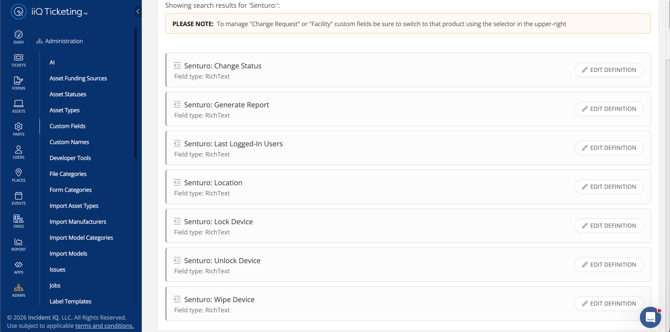
Senturo requires seven custom fields in Incident IQ. Each one renders one action link on the asset page, so all seven must exist for the full set of actions to be available.
Senturo provides these instructions in-product as well. In the User Management panel, click on Setup Custom Fields to display them alongside the Test Custom Fields button.
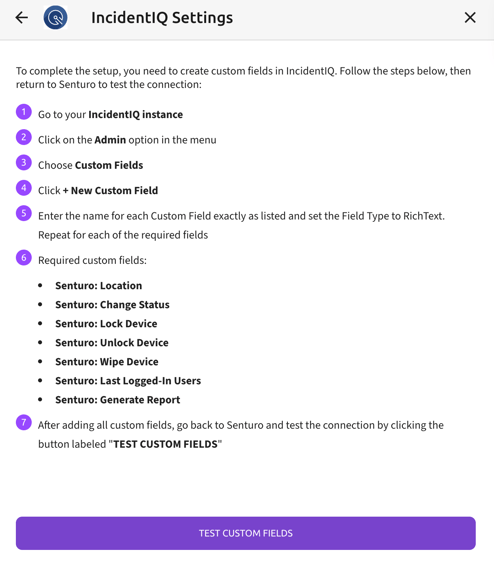
In Incident IQ:
- Navigate to Admin > Custom Fields.
- Click on + New Custom Field.
- Enter the field name exactly as listed below. Names must match character for character, including the
Senturo:prefix, the colon, and the spacing. A mismatched name will not render a link. - Set the Field Type to RichText.
- Save the field, then repeat for each of the seven fields.
Required custom fields:
| Field name | Enables |
|---|---|
| Senturo: Location | Device location and location history |
| Senturo: Change Status | Setting the device to Monitored or Missing |
| Senturo: Lock Device | Applying a Senturo lock |
| Senturo: Unlock Device | Releasing a Senturo lock |
| Senturo: Wipe Device | Permanently erasing device data |
| Senturo: Last Logged-In Users | The device user log |
| Senturo: Generate Report | The Device Recovery Report |
Step 5: Test the Configuration
- Return to Senturo and navigate to Integrations.
- Locate Incident IQ and click on Manage, then click on Test Integration.
- Click on Test Custom Fields. Senturo checks your connected Incident IQ instance and confirms that all seven fields are present and correctly named.
Note: The first successful test also starts the initial sync between Senturo and Incident IQ. Nothing further is required from you while it runs.
Step 6: Wait for the Initial Sync, Then Confirm the Action Links
Once the initial sync starts, Senturo writes the action links to your Incident IQ assets. How long this takes depends on how many assets you have, so districts with large fleets should expect a longer run.
Senturo sends you an email when the sync finishes. Action links appear on asset pages only after that point, so wait for the email before checking. Asset pages will look unchanged until the sync completes, which is expected.
When the email arrives, navigate to any asset in Incident IQ and scroll to the Meta Information section. You should see all seven Senturo rows, each with a clickable link.
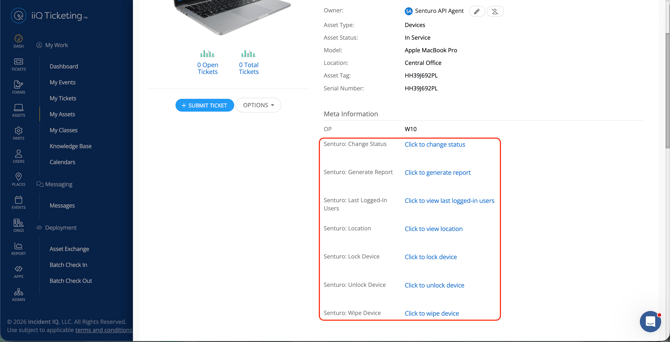
After the initial sync, Senturo syncs with Incident IQ nightly. Assets added to Incident IQ later receive their Senturo action links on the next nightly sync, so allow until the following day before investigating a newly added asset.
Troubleshooting
Test Custom Fields reports missing fields. The most common cause is a name that does not match exactly. Compare each field against the list above, checking the Senturo: prefix, the colon, capitalisation, and spacing. Also confirm each field's type is set to RichText rather than a plain text or note type.
The connection to Incident IQ fails. Confirm the URL is entered in full, including https://, and points to your district's instance. Then confirm the API token was copied completely and has not been superseded — Incident IQ shows a token only once, so a partial copy is easy to miss. If the token is sound, verify the Incident IQ account you used has administrator permissions.
Action links do not appear on any asset page. If you have only just finished setup, check whether the sync completion email has arrived. The initial sync begins when Test Custom Fields first passes, and links do not appear on asset pages until it has finished — which can take a while on large fleets. If the email has not arrived yet, no action is needed.
If the sync has completed and links are still absent across all assets, run Test Custom Fields again to confirm the fields exist and are named correctly. If the test passes and links remain missing, contact Senturo support.
Conclusion
With the integration connected, users added, and all seven custom fields in place, Senturo actions are available directly from every Incident IQ asset page. Your team can locate a device, review who has signed in to it, and escalate it to a recovery case without leaving the platform they already work in.
From here, assign each user the specific permissions their role requires so that access to sensitive actions such as Wipe stays with the people who should have it.
FAQs
Q: Why does Senturo require seven custom fields? A: Each custom field renders one action link on the Incident IQ asset page. Creating all seven makes the complete set of Senturo actions available.
Q: What happens if a custom field name does not match exactly? A: The link will not render on asset pages. Field names are matched character for character, so review the Senturo: prefix, colon, capitalisation, and spacing, then run Test Custom Fields again.
Q: Can I give Incident IQ users access without creating Senturo accounts for them? A: Yes. Use the CSV upload in the Add users panel to add their email addresses. They gain access to Senturo actions in Incident IQ without becoming full Senturo users.
Q: How often does Senturo sync with Incident IQ? A: Nightly. Assets added to Incident IQ receive their Senturo action links on the next sync.
Q: Can I connect a different Incident IQ account later? A: Yes. Open the Incident IQ tile in Senturo and click on Sign Out to disconnect the current account, then connect the new one.