![dark-1.png]](https://support.senturo.com/hs-fs/hubfs/dark-1.png?height=40&name=dark-1.png)
Overview
The Device Recovery Report gathers everything Senturo knows about a missing device into a single document: what the device is, where it was last seen, how it has moved, who was signed in to it, and what state it is currently in.
It exists for the moment a device stops being an IT issue and becomes a case — one that a school resource officer, a police report, an insurance claim, or a district incident file needs a record of. Rather than assembling that information section by section, you generate it once and hand it over.
The report is available for devices set to Missing.
Before You Begin
You need an active session in the Senturo Device Console, the Generate Report permission, and the device must be set to Missing.
If the device is still set to Monitored, navigate to Actions › Status, set it to Missing, and click on Update status.
What the Report Contains
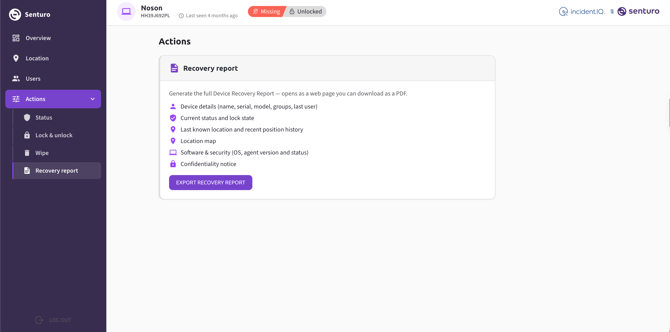
| Section | What it covers |
|---|---|
| Device details | Name, serial number, model, groups, and last user |
| Current status and lock state | Whether the device is Monitored or Missing, and Locked or Unlocked |
| Last known location and recent position history | The most recent position and the trail leading to it |
| Location map | The last known position shown on a map |
| Software and security | Operating system, Senturo agent version, and agent status |
| Confidentiality notice | A statement covering the sensitivity of the report's contents |
Note: The report captures the device as it stands when you generate it. If the device checks in afterwards, or its status or lock state changes, generate a fresh copy rather than relying on the earlier one.
Generating the Report
- Navigate to Actions › Recovery report. The page lists what the report will contain.
- Click on Export recovery report. The report opens as a web page, which you can then download as a PDF.
Using the Report
The report is built to be handed to someone outside your team, which shapes how it is best used:
- With law enforcement or a school resource officer. Device details and position history give an officer concrete specifics — a serial number, a last known position, a movement trail — rather than a verbal summary.
- For insurance or asset write-off claims. Serial number, model, status, and last known location together form the documentation most claims processes ask for.
- As a record on the ticket. Attaching the PDF to the Incident IQ ticket keeps the device's history with the case, which matters when a device resurfaces months later.
- For district incident records. The report gives a consistent format across every missing device, rather than a different set of notes each time.
Note: The report contains location history and user login records. On student devices this is sensitive information, and the confidentiality notice included in the report reflects that. Share it only with people who need it for the recovery or the case, and follow your district's policies on handling student data.
Troubleshooting
Export recovery report is unavailable. The device is set to Monitored. Navigate to Actions › Status, set it to Missing, then return to the Recovery report page.
Recovery report is missing from the navigation. You do not hold the Generate Report permission. Ask your Senturo administrator to grant it.
The location section shows old information. The report reflects the most recent data Senturo received. Check Last seen in the console header — a device that is offline or powered off cannot report a new position, so the report shows the last one recorded.
The position history is sparse or has gaps. Positions are recorded when the device checks in. A device that was offline for part of the period produces no records for that time.
Conclusion
The Device Recovery Report turns everything Senturo has recorded about a missing device into one document you can hand to whoever is handling the case.
Generating it early, at the point you mark a device Missing, gives you a record of the device's state at the moment it was escalated — which is exactly what an officer, a claims process, or a district incident file will ask for later.
FAQs
Q: Why is the Export recovery report button unavailable? A: The report is only available for devices set to Missing. Change the status in Actions › Status and return to the page.
Q: What format is the report? A: It opens as a web page that you can download as a PDF.
Q: Does generating the report change anything on the device? A: No. It is a read-only record and does not send any command to the device.
Q: Can I generate the report more than once? A: Yes. Each report reflects the device at the moment you generate it, so produce a fresh copy if the device checks in or its state changes.
Q: Can I generate a report for a device that has been recovered? A: The report requires the device to be set to Missing. Generate it before returning the device to Monitored if you need a record for the case file.