![dark-1.png]](https://support.senturo.com/hs-fs/hubfs/dark-1.png?height=40&name=dark-1.png)
Overview
The Senturo integration adds a set of action links to each asset page in Incident IQ. Selecting any one of them opens the Senturo Device Console: a single, authenticated workspace scoped to that specific asset, where you can review the device, check its location and login history, change its status, and run recovery actions.
This article covers how to reach the console, how to authenticate, how to navigate it, and how your assigned permissions shape what you can see.
Before You Begin
You will need the following before the console will open for you:
- A Senturo administrator must have added you to the Incident IQ integration. Access is granted per user, and you cannot self-enroll.
- A Senturo API key. Your administrator either generates this for you or sets a custom key on your behalf.
- The required custom fields must exist in Incident IQ. If they have not been created, no action links appear on asset pages at all.
Where the Senturo Action Links Appear
Navigate to any asset in Incident IQ and scroll to the Meta Information section of the asset page. Each Senturo custom field appears there as a labelled row with a clickable link.
| Custom field | Link text |
|---|---|
| Senturo: Location | Click to view location |
| Senturo: Change Status | Click to change status |
| Senturo: Lock Device | Click to lock device |
| Senturo: Unlock Device | Click to unlock device |
| Senturo: Wipe Device | Click to wipe device |
| Senturo: Last Logged-In Users | Click to view last logged-in users |
| Senturo: Generate Report | Click to generate report |
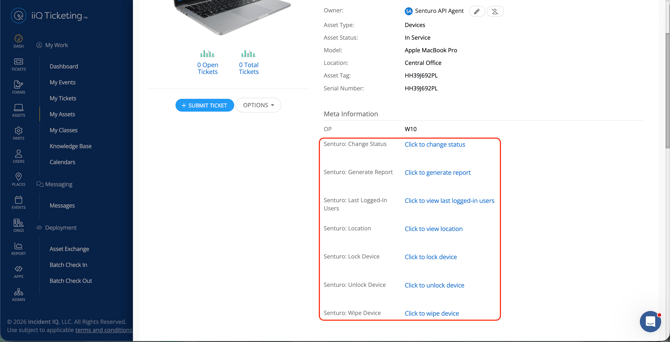
Why this matters: all seven links open the same console for that asset. Once you are inside, you can reach any section you have permission for using the left-hand navigation, regardless of which link you used to get there.
If some or all of these rows are missing from your asset pages, the corresponding custom fields have not been created in Incident IQ. Ask your administrator to complete the custom field setup.
Authenticating to the Senturo Device Console
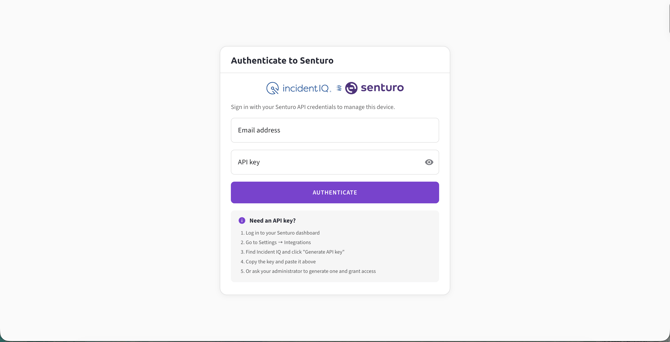
- Click on any Senturo action link on the asset page. The Authenticate to Senturo screen opens.
- Enter your email address. Use the email address associated with your Incident IQ user record.
- Enter your API key. Paste the key your administrator issued you. If your administrator set a custom key for your account, enter that instead. Click on the eye icon to reveal what you have typed if you need to check it.
- Click on Authenticate. The console opens on the Overview page for the asset you started from.
If You Do Not Have an API Key
The authentication screen includes a short reference for obtaining a key. If you are a Senturo administrator, you can generate one yourself:
- Enter your credentials in Senturo.
- Navigate to Integrations.
- Locate Incident IQ and generate a key for the relevant user.
- Copy the key and store it securely.
If you are not a Senturo administrator, contact whoever manages your Senturo account and ask them to generate a key and grant you access. Keys are issued per user, so a colleague's key will not work for you.
Navigating the Senturo Device Console
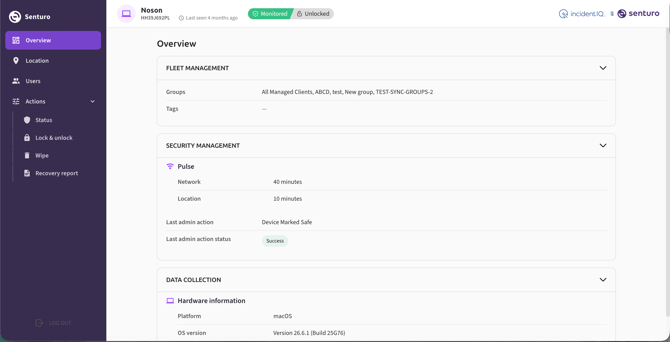
The console header shows the device name, serial number, when it was last seen, and two status indicators: the device status (Monitored or Missing) and the lock state (Locked or Unlocked).
The left-hand navigation contains the following:
| Section | What it contains |
|---|---|
| Overview | Device summary across Fleet Management, Security Management, and Data Collection |
| Location | Current position on a map, coordinates, and location history |
| Users | The user log for the device |
| Actions › Status | Set the device status to Monitored or Missing |
| Actions › Lock & unlock | Apply or release a Senturo lock, with a custom lock screen |
| Actions › Wipe | Permanently erase device data |
| Actions › Recovery report | Generate the Device Recovery Report |
Click on Actions to expand or collapse its four sub-items. Log out sits at the bottom of the navigation.
How Permissions Control What You Can See
Your administrator assigns permissions individually, and the console shows only what you have been granted. If you cannot see a section, you have not been given the corresponding permission.
| Permission | What it gives you access to |
|---|---|
| View Location | The Location section, including location history |
| View Users | The Users section and the device user log |
| Change Status | Actions › Status |
| Lock Device | The lock controls in Actions › Lock & unlock |
| Unlock Device | The unlock controls in Actions › Lock & unlock |
| Wipe Device | Actions › Wipe |
| Generate Report | Actions › Recovery report |
If you need access to a section that is not available to you, contact your Senturo administrator rather than attempting to authenticate with a different key.
Device Status Controls Which Recovery Actions Are Available
The three recovery actions — lock, wipe, and recovery report — are only available when the device status is set to Missing. While a device is Monitored, Senturo treats it as under normal tracking and will not carry out any of them.
Setting the status is a deliberate, separate step. Attempting to lock a device that is still Monitored will not proceed; Senturo returns a notice instructing you to mark the device as Missing first. Wipe and Recovery report display the same requirement directly on their pages, and their buttons remain unavailable until the status changes.
To change the status, navigate to Actions › Status, select Missing, and click on Update status.
Sessions and Signing Out
Your session lasts 90 days from the point you authenticate.
Clicking on Log out ends your session entirely, not just for the asset you are currently viewing. The next Senturo action link you open, on any asset, will prompt you to authenticate again.
Your session also ends immediately if your administrator changes your API key. Any console you have open at the time is signed out, and you will need the new key to get back in.
Known Limitation: Links Open in the Same Tab
Because of a platform limitation in Incident IQ, Senturo action links open in the current browser tab rather than a new one. To keep your place in Incident IQ, right-click the action link and select Open Link in New Tab.
Troubleshooting
Authentication fails with a valid-looking key. Confirm you are using the email address on your Incident IQ user record, not a personal or alias address. Then confirm your administrator has not regenerated or replaced your key — a changed key invalidates the previous one immediately. Ask for the current key and try again.
A section is missing from the left-hand navigation. You have not been assigned that permission. Ask your Senturo administrator to review your permissions in the integration's user management settings.
Lock, Wipe, or Recovery report will not run. Check the device status in the console header. All three require the device to be set to Missing. Navigate to Actions › Status, change the status, then return to the action.
No Senturo links appear on an asset page. For a newly added asset, wait for the next nightly sync — Senturo syncs with Incident IQ once per night, and action links appear on new assets the following day. If links are missing across all assets, the required custom fields have not been created in Incident IQ.
Conclusion
The Senturo Device Console turns seven separate action links into one continuous workflow. Authenticate once from any asset page and you can review a device, trace its location, check who has signed in to it, and escalate it to a recovery case without leaving Incident IQ.
Knowing how the console is structured — and that your view of it reflects the permissions you have been assigned — means you can move straight to the action you need when a device goes missing.
FAQs
Q: Do I need a Senturo account to use the Senturo Device Console? A: No. Incident IQ users and Senturo users are managed separately. A Senturo administrator can grant you console access using your Incident IQ email address without creating a full Senturo account for you.
Q: Does it matter which Senturo action link I click on? A: No. Every link opens the same console for that asset. Once you have authenticated, use the left-hand navigation to reach any section you have permission for.
Q: Why can I see the Location section but not Wipe? A: Permissions are assigned individually. Your administrator has granted you View Location but not Wipe Device. Contact them if you need the additional permission.
Q: I clicked Log out on one device. Am I signed out everywhere? A: Yes. Logging out ends your session entirely, so the next action link you open on any asset will ask you to authenticate again.
Q: My administrator changed my API key. What happens to my open session? A: It ends immediately. Key changes take effect straight away, and the previous key stops working, so you will need the new one to sign back in.